
The Shepherd area
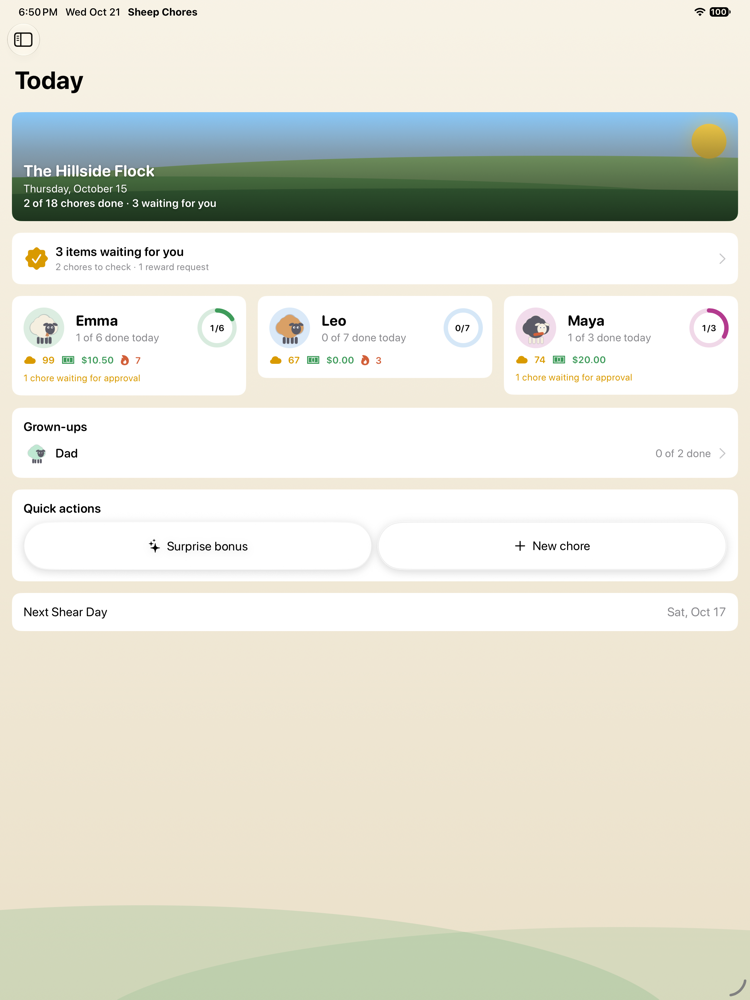
On the family iPad the parent area — the Shepherd area, unless you switch to plain words — sits behind a four-, five- or six-digit PIN. On your own iPhone, Face ID opens it. A kid never has a path to it. It has a sidebar on iPad and tabs on iPhone: Today, Calendar, Approvals, Kids and More, where Chores, Routines, Rewards, Money, Reports, Guide and Settings each sit with a line saying what they hold.
Approvals from your pocket
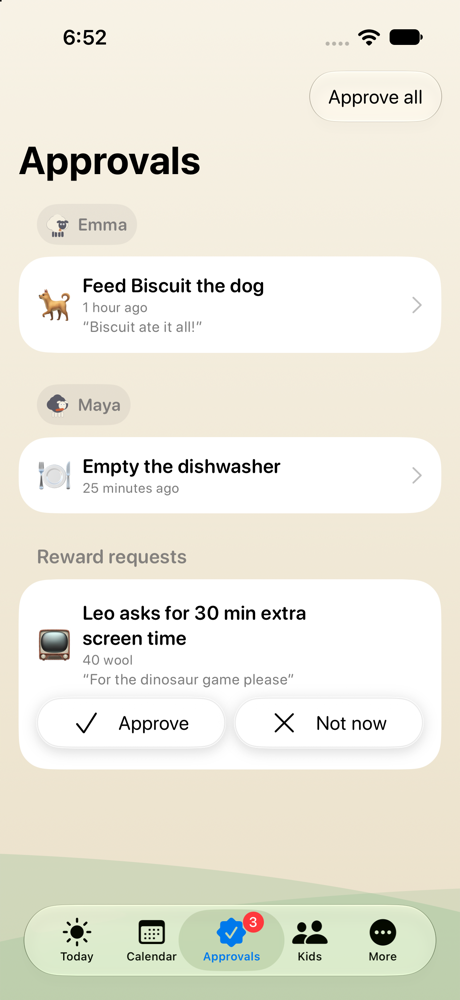
When a kid finishes a chore or asks for a reward on another device, your iPhone gets a banner. Approve or Needs redo right from the banner, with Face ID or your passcode so a child holding your phone cannot approve their own work. Open the app and the Approvals inbox groups finished chores by kid with the photo, the note, how long ago, and how long a timed step really took. Approve all on a good day. Add a surprise bonus when a kid went above and beyond. Any approval can be taken back later.
Trust levels and spot checks
Approving everything does not scale past the second kid. Give an older kid a trust level and their chores count on their own; each week the app picks a sample for you to review, and the spot-check count only counts chores that actually needed a check. Photo proof stays available per chore for the jobs that need eyes on them.
Setting up chores that run themselves
- Open Chores and tap +, or browse the chore library — about 300 chores filed by room, searchable — and tick what fits.
- Name it, choose a picture (suggestions follow the name), add steps if you want a checklist, and say how long it takes.
- Decide what it pays: wool points, money, both, or make it a flock duty that pays nothing. The editor shows what families typically pay for the kid's age.
- Choose who checks it: it counts on its own, a parent approves it, or it needs a photo of the finished job.
- Set how it repeats — every day, weekdays, weekends, specific days, every N days, every other week, monthly — with a time of day, a due time and an optional reminder.
- Assign it: fixed to one or more kids, taking turns between them, up for grabs, or together as a team. Save. It appears on the right boards on the right days from now on.
Notifications you choose
- Approvals and reward requests on your iPhone, answerable from the banner.
- Unlock gates: a banner when a locked reward opens because the chores are done.
- Evening summary: “Today: 7 of 9 chores done, 2 waiting for you,” at the time you pick.
- Weekly digest: completion per kid, wool earned, streaks, money owed before Shear Day.
- Kid reminders: a nudge before a chore is due and when a routine starts, shown in-app on the family iPad or as notifications on a kid's own phone.
The family iPad never asks for notification permission, so the kitchen never buzzes with grown-up alerts.
Settings, in one place
Settings is a single hub with a line under every row saying what it holds right now. Family (the farm's name, what points are called, playful or plain words, currency, the first day of the week, holidays on the Pasture), Chores (what a new chore needs when it is done, penalties, the kids' reminders), Rewards (cashing wool out, payday, jar interest, the wait on big wishes) and Your plan follow the family to every device through iCloud. This device (its role, Face ID, the fridge chart and when it dims), Battery (when the meadow rests if nobody is watching, following Low Power Mode and a hot device, dimming the fridge screen at night, parking a routine nobody finished), the PIN, Notifications and The voice belong to the device in hand. Family sharing, iCloud and Data (restore, the sample family, clean-up, erase) and About close the list.
Two parents, two Apple IDs
Settings › Family sharing invites the other parent by link — a message, an email, or Copy the invitation link into anything. They install the app, open the link, and get the whole parent side with notifications on their own iPhone under their own Apple ID. Both of you change the same flock. Kids still need no accounts at all.
Reports, the time report card and the printed week
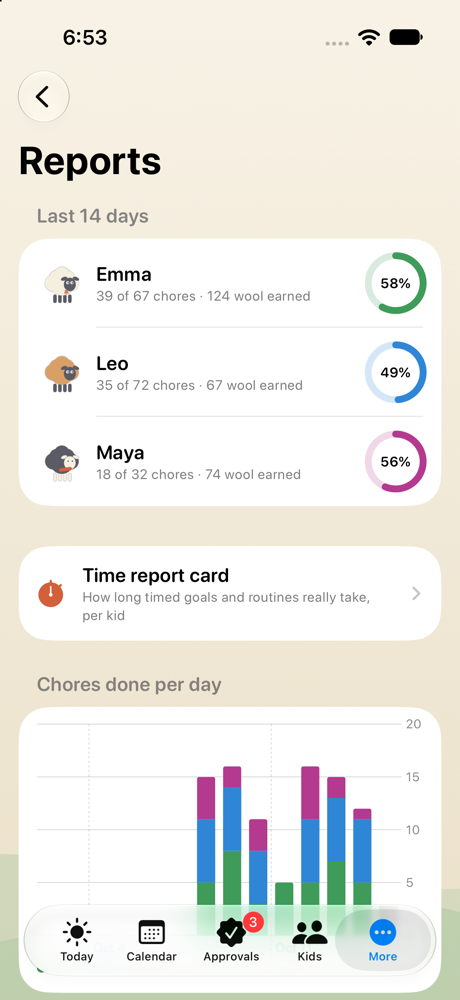
Reports draw a twelve-week trend of completion per kid, a fairness table of who was assigned what and who did it, and streak history. The time report card shows, per kid, how long every timed goal and routine really takes: how many times it ran, the usual time against the plan, the fastest run, how often it went over, whether it is getting quicker, and the longest step of a routine, with a bar per day. The calendar prints the week as a one-page sheet for the real fridge. The ledger and the completion history export as CSV for a spreadsheet.
Everything can be undone
A kid's mistaken tap goes back with Oops. A parent can put any chore — or a whole routine — back to to-do from the kid's screen with the PIN, from the calendar, or with Reset today on a routine. An approval can be taken back. A kid's ledger or sheep can be reset from their page after your PIN or Face ID. Deleting a routine takes its steps off the boards (archived, so history stays) or keeps them as regular chores — your choice, every time.
Grown-ups on the board
Put yourself on the chart without wool or money so the kids see everyone pitching in. Grown-ups show on the calendar and the fridge chart and stay out of the money, reward and report lists.
Penalties are optional and off by default. Turned on, a missed chore with penalty points costs those points the next morning — and an excused chore (skipped with a reason) waives it. Most families never turn it on; the streak does the work.
Questions
Can a kid get into the parent area?
Not without the PIN. The family iPad never offers Face ID or a Forgot-PIN path; your own iPhone can use Face ID. Five wrong tries start a cooldown.
Do I have to type the PIN on my own iPhone?
No. With Unlock with Face ID (or Touch ID) on, the gate shows the scanner instead of the PIN pad and the scan starts by itself whenever the parent area is locked. Cancel it and a button offers another go; Use the PIN instead brings the pad up. The family iPad always asks for digits, on purpose.
I forgot the PIN. What now?
On a parent's iPhone, Forgot PIN uses the device's own passcode or Face ID to let you set a new one. The family iPad deliberately never offers that, so use your phone.
Do approvals work when I am away from home?
Yes. Everything syncs through iCloud, so a chore finished on the kitchen iPad reaches your phone wherever you are, and your approval reaches the iPad on its next sync.
Can I approve everything at once?
Yes. Approve all asks once and clears the inbox. Trust levels go further and let an older kid's chores count on their own, with a weekly sample for you to check.